Affiliate Disclosure: This troubleshooting guide may contain affiliate links.
CrushOn AI Not Working in 2026? Diagnose and Fix Every Common Error
When CrushOn AI stops working, the cause is usually one of three things: the platform itself is down (server-side), your local connection or device has an issue, or there is a specific feature malfunction. Identifying which category your problem falls into takes 30 seconds and saves significant frustration. This guide walks through diagnosis and fixes for every common issue.
Diagnose First: Is CrushOn AI Down?
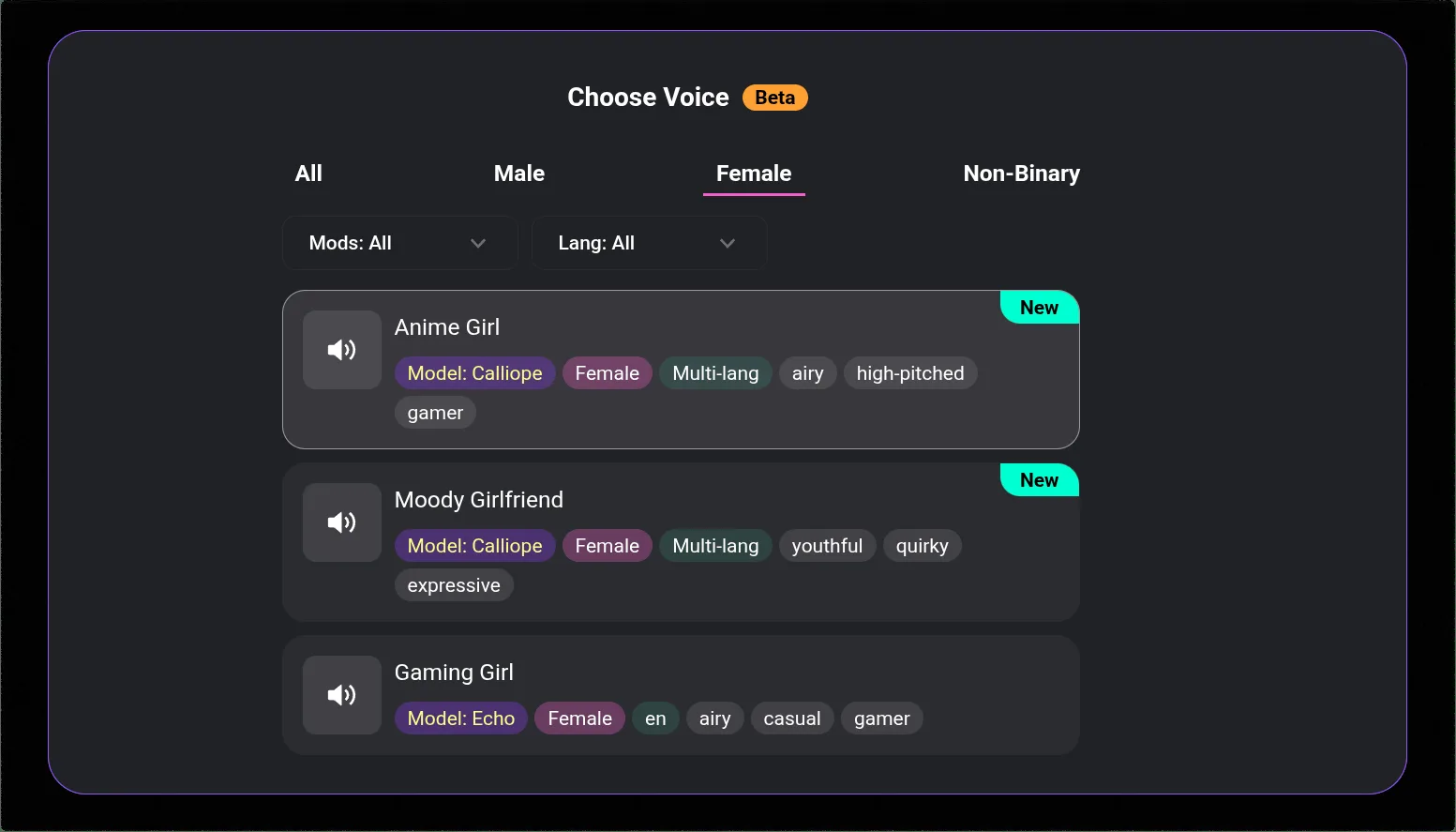
Before touching your device settings, verify whether CrushOn AI's servers are the problem:
Check 1: Twitter / X (@CrushonAI)
The official CrushOn AI account posts service status updates during significant outages. This is the fastest confirmation method. If the account shows a recent status post about downtime, your only option is to wait.
Check 2: Downdetector.com
Search "CrushOn AI" on Downdetector to see real-time user reports. A spike in reports confirms a platform-wide issue rather than a local problem.
Check 3: Try a different device or network
If CrushOn AI works on your phone but not your laptop, the issue is device-specific. If it fails on both your home WiFi and mobile data, the issue is likely platform-side.
What to do if it is server-side: Nothing — wait. CrushOn AI downtime typically lasts minutes to a few hours. Standard maintenance is announced on Twitter. Unexpected outages resolve without user action.
CrushOn AI Won't Load (Blank Page or White Screen)
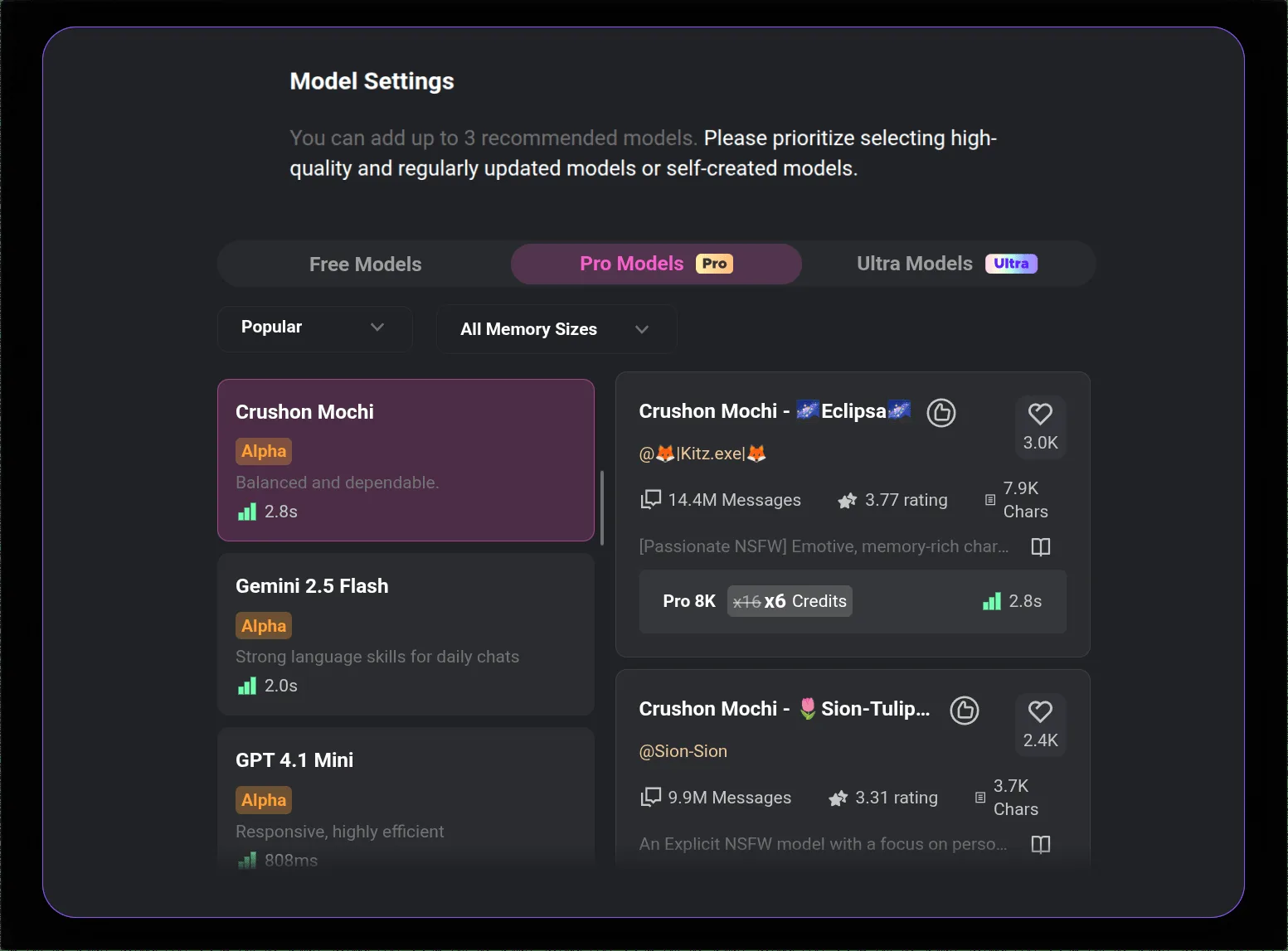
Most likely cause: Browser cache conflict, outdated session data, or JavaScript error.
Fixes in order:
- Hard refresh: Ctrl+Shift+R (Windows/Chrome/Firefox) or Cmd+Shift+R (Mac/Chrome/Firefox). This forces a full page reload bypassing cache.
- Clear site data: In your browser settings, clear cookies and cache specifically for crushon.ai. Cached sessions sometimes conflict with updated platform code.
- Disable extensions: Browser extensions (particularly ad blockers, script blockers, and privacy extensions) can block scripts that CrushOn AI requires to load. Test in a private/incognito window, which disables most extensions by default.
- Try a different browser: If Chrome fails, try Firefox or Edge. Browser-specific rendering issues occasionally affect web apps.
- Try the app: If the browser version fails and the mobile app works (or vice versa), this isolates the problem to one client.
Chat Is Not Sending Messages / Getting Stuck
Symptoms: Messages hover on "sending" indefinitely, show a network error, or disappear without response.
Causes: Server overload, session timeout, poor connection quality.
Fixes:
- Check your internet — load any other website to confirm connectivity
- Refresh the page to re-establish the session connection
- Start a new conversation if the current one appears stuck in a broken state
- If using a VPN, temporarily disable it — VPNs sometimes cause session issues with web applications
- Wait 5-10 minutes if server congestion is suspected — message queuing can clear on its own
App Crashes on Android or iOS
Symptoms: App closes immediately on opening, freezes on the loading screen, or crashes during use.
Fixes in order:
- Update the app: Outdated app versions frequently produce crashes. Check the Play Store for available updates.
- Restart your device: Clears RAM and resolves temporary OS-level issues.
- Clear app cache: On Android: Settings > Apps > CrushOn AI > Storage > Clear Cache. On iOS: offload and reinstall the app.
- Reinstall: Uninstall completely, restart device, reinstall from Play Store (Android) or crushon.ai APK.
- Use web version: If the app continues crashing, switch to crushon.ai in your mobile browser. Identical features, no app issues.
Images Not Loading or Generating
Symptoms: Image requests produce error messages, images display as broken, or the "Image not found" error appears.
This is a known intermittent issue during high-traffic periods — not a permanent problem or account issue. When CrushOn AI's servers are under heavy load, image generation jobs fail before completing.
Fixes:
- Wait 60 seconds and scroll up — images sometimes appear late as generation completes
- Refresh the page without making a new request first
- Request the image again — retrying is the primary fix
- Try during off-peak hours (generally early morning US time has lower server load)
Slow Response Times
Free tier users receive lower capacity priority than paid subscribers, which means slower responses during peak hours. This is by design — paid subscribers receive dedicated capacity.
If you are on a paid tier and experiencing slow responses:
- Check server status (may be a platform-wide slowdown)
- Switch between models — different models may have different load levels at any given time
- Try the web version if using the app or vice versa
Ready to try CrushOn AI?
Visit CrushOn AISpecific Known Issues in 2026
DeepSeek model instability: Community reports throughout 2026 describe session errors and inconsistent quality specifically with the DeepSeek model on CrushOn AI. If you experience crashes or poor quality specifically with DeepSeek, switch to MythoMax, Taurus Pro 8K, Claude 3.5 Sonnet, or GPT-4o.
App Store removal (iOS): The CrushOn AI iOS app has been removed from some regional App Stores due to Apple content policy enforcement. This is not a malfunction — it is a platform-wide regional restriction. Use the Safari browser at crushon.ai for full access.
Repeating responses: If the AI character begins looping the same response, start a new conversation. This resets the conversation state and typically resolves the loop.
For download and access-related issues, see our download guide. For safety concerns, see our safety page.
Frequently Asked Questions
CrushOn AI slows down significantly during peak usage hours when server demand exceeds capacity. Free tier users experience this most acutely due to lower capacity priority. Paid subscribers on Standard+ receive dedicated capacity. Check @CrushonAI on Twitter for status updates during unusual slowdowns.
The fastest methods are: checking @CrushonAI on Twitter/X for official status posts, and checking Downdetector.com for community-reported outages. If multiple users are reporting the same issue simultaneously, the platform is down server-side.
A network error on CrushOn AI typically indicates a failed connection between the app/browser and CrushOn AI's servers. This can be caused by your internet connection, a server-side issue, or a timeout. Refresh the page, check your connection, and retry. If the error persists across multiple attempts and your internet is working normally, the platform is likely experiencing server-side issues.
Image loading failures are the most common CrushOn AI error during peak hours. The image generation system becomes congested under high load. Wait and retry — this resolves in most cases within a few minutes. If image failures persist for hours, check platform status channels.
Repeated logouts usually indicate browser cookie or session management issues. Clear cookies for crushon.ai, ensure your browser is not blocking cookies for the site, and log in again. If using a privacy browser or extension that clears cookies aggressively, add crushon.ai as an exception.